
Download Capto Screen Capture Record – Free Secure Screen Capture & Recording Tool
Overview of Capto Screen Capture Record
Capto Screen Capture Record is a premium all‑in‑one suite that lets you capture, edit, and share high‑quality screen recordings in a single workflow. Designed for educators, marketers, and developers, Capto combines full‑screen, region, and even a dedicated webpage mode, making it simple to grab exactly what you need without extra steps. Recordings are rendered in full HD at a buttery‑smooth 60 fps, while the built‑in editor provides annotation tools, trimming, and fine‑tuned audio channel controls.
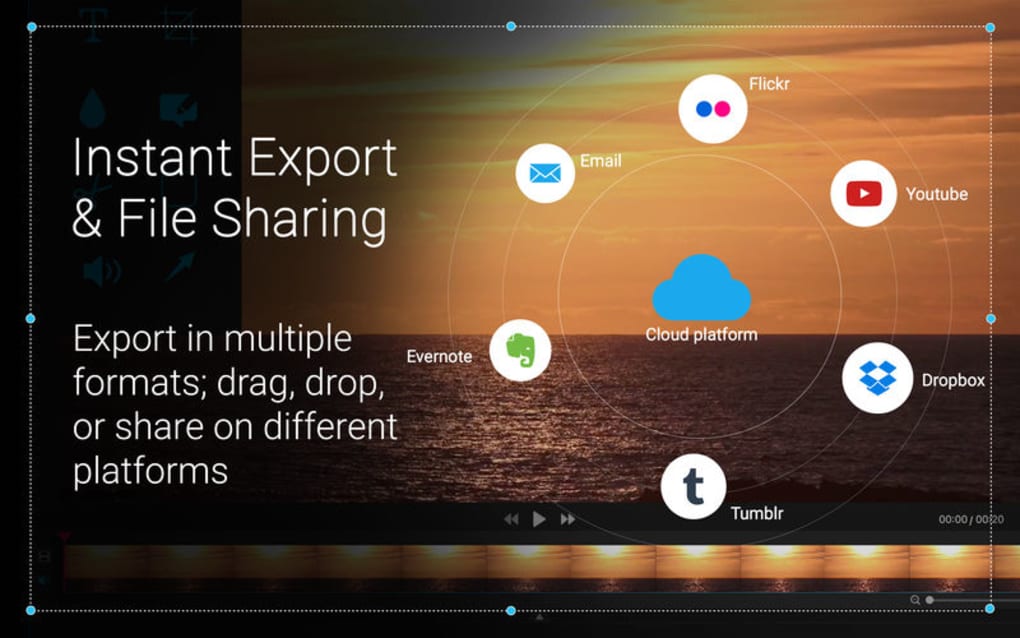
Whether you’re producing a tutorial, a product demo, or a quick bug‑report video, Capto aims to be the only screen capture software you’ll ever need. The interface packs a lot of power, which can feel a bit dense at first, but once mastered it unlocks a workflow that rivals more expensive alternatives. Capto also supports exporting to common formats like MP4, MOV, and GIF, and integrates with cloud services for easy sharing.
In short, Capto offers a professional‑grade solution that balances flexibility with a learning curve that rewards frequent users.
Key Features That Set Capto Apart
- Full‑screen, regional, and webpage capture modes for targeted screenshots.
- Full HD (1920×1080) recording at 60 fps for crystal‑clear video.
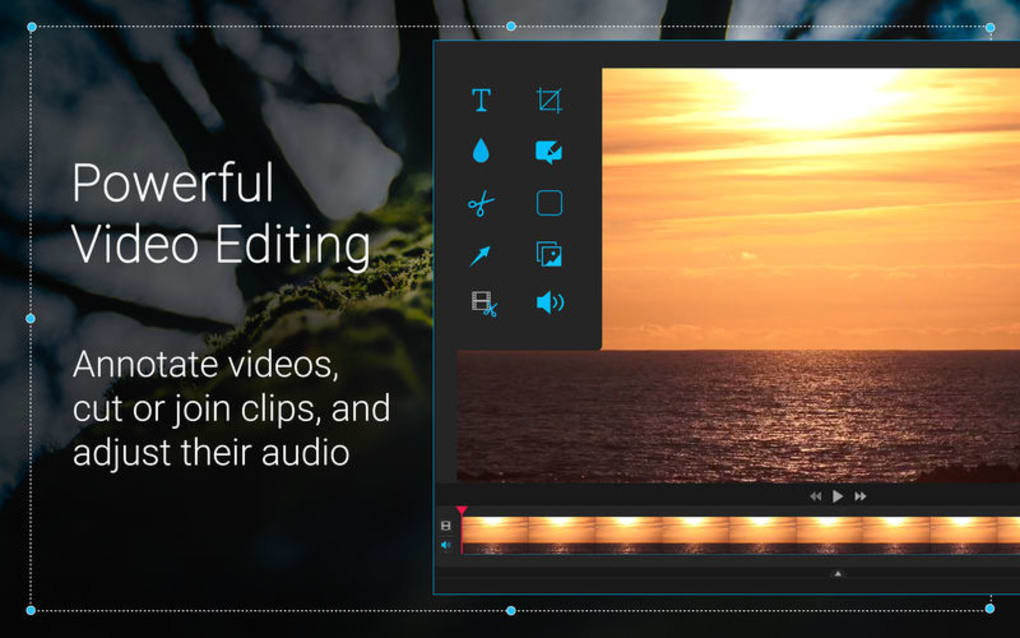
- Powerful built‑in editor with annotations, callouts, and text overlays.
- Trim, cut, and splice video clips without leaving the app.
- Separate audio channel control for microphone and system sound.
- Export options: MP4, MOV, GIF, and image sequences.
- Direct sharing to YouTube, Vimeo, and cloud storage providers.
- Keyboard shortcuts (customizable) for rapid capture.
- Integrated library to organize recordings and screenshots.
- Cross‑platform licensing that works on both Windows and macOS.
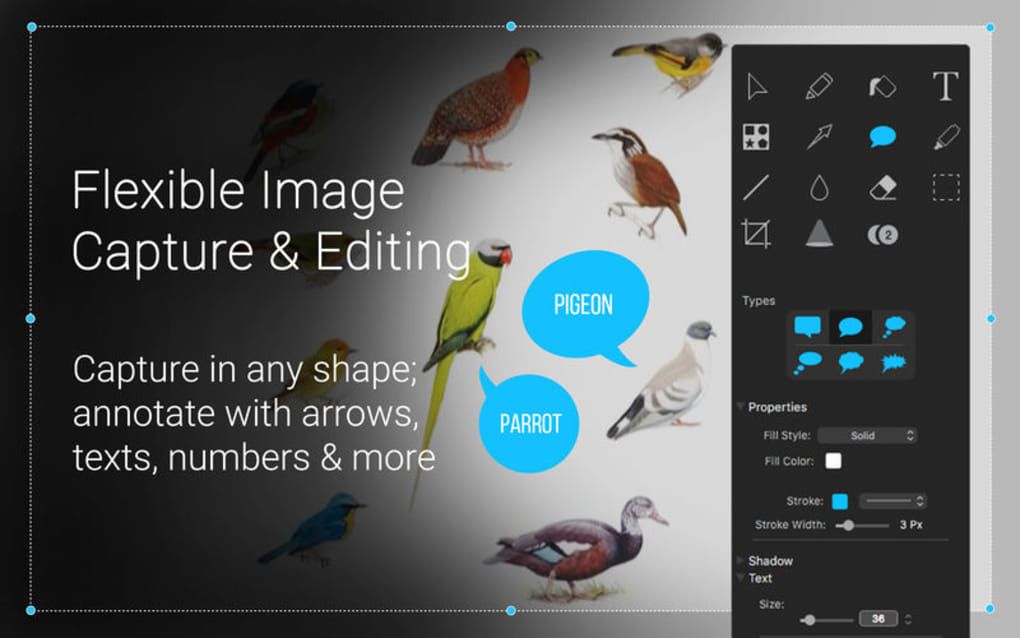
Beyond the basic capture capabilities, Capto’s annotation suite includes shapes, arrows, and a flexible text tool that lets you highlight UI elements or add step‑by‑step instructions directly onto the video timeline. The library view uses smart tags and folders, so you can retrieve past projects in seconds—a real time‑saver for anyone juggling multiple tutorials. While the UI can feel feature‑dense, every tool is placed with a logical workflow in mind, reducing the need for third‑party editors. For teams, Capto also offers a collaborative mode where you can share a project file and let colleagues add comments or extra layers without re‑exporting the whole video. This makes it a solid choice for remote training programs and product launch teams.
Installation & Everyday Usage Guide
Getting started with Capto is straightforward. Visit the official website, click the “Download Free Trial” button, and choose the appropriate installer for Windows or macOS. The installer is signed and verified, ensuring a secure download free from malware. After running the .exe (Windows) or .dmg (macOS) file, follow the on‑screen prompts: accept the license agreement, choose an installation folder, and let the wizard copy the necessary files. Once installed, launch Capto from the desktop shortcut or the Applications folder.
On first launch, Capto walks you through a brief onboarding tour that highlights the capture modes and editor layout. To record, select the capture button in the toolbar and pick one of the three modes—Full Screen, Region, or Webpage. For regional captures, simply click and drag to define the area; for webpage mode, paste the URL and let Capto render the page before recording. Press the red “Record” button to start, and use the pause/resume controls as needed. After you stop the recording, the clip appears in the library where you can double‑click to open the editor.
Inside the editor, the timeline sits at the bottom, while annotation tools line the left side. Drag the ends of the clip to trim unwanted sections, then click the “Text” icon to add callouts. Use the “Audio” panel to mute system sound or boost your microphone input. When satisfied, click “Export,” choose your desired format and resolution, and hit “Save.” The exported file can be uploaded directly to YouTube via the built‑in sharing option or saved locally for later distribution. For power users, Capto’s preferences panel lets you assign custom keyboard shortcuts, set default export settings, and enable automatic library backups to your preferred cloud folder.
Compatibility Overview and Balanced Pros & Cons
Capto is natively supported on Windows 10/11 (64‑bit) and macOS 12 Monterey or later. The application runs smoothly on typical consumer hardware, requiring at least 4 GB of RAM and a dual‑core processor for basic recording; however, for 60 fps full‑HD capture, a quad‑core CPU and 8 GB RAM are recommended. The software also integrates with external microphones and webcams, making it a flexible choice for creators who need multi‑source audio or picture‑in‑picture effects.
Pros
- High‑quality 60 fps HD recording ensures smooth playback.
- All‑in‑one editor eliminates the need for third‑party tools.
- Multiple capture modes, including a unique webpage capture.
- Robust annotation suite ideal for tutorials and documentation.
- Direct export to popular video platforms and cloud services.
- Customizable shortcuts speed up repetitive workflows.
Cons
- Interface can feel cluttered for first‑time users.
- Occasional pop‑up reminders to upgrade the license.
- Some shortcut keys may not work on older macOS versions.
- Full license costs $49.99, which may be steep for casual users.
- No native Linux support.
Overall Verdict: Capto delivers a professional‑grade screen capture experience with a feature set that rivals many paid competitors. While the learning curve is a bit steep, the payoff in productivity and video quality makes it a worthy investment for educators, marketers, and developers alike.
Frequently Asked Questions & Final Thoughts
Can I use Capto for free?
Capto offers a 14‑day free trial with full functionality. After the trial, you’ll need to purchase a license to continue using the software without watermarks.
Does Capto support exporting to GIF?
Yes, the export dialog includes an option to save your recording as an animated GIF, which is handy for quick demos on social media.
What audio sources can I capture simultaneously?
Capto records both system audio and microphone input on separate tracks, allowing you to adjust each channel independently during editing.
Is there a Mac‑only feature that Windows users miss?
The macOS version includes native support for capturing the Touch Bar on compatible MacBook models, a feature not applicable to Windows.
How does Capto handle large video files?
Capto uses efficient compression algorithms that keep file sizes reasonable without sacrificing quality. You can also export at lower resolutions to further reduce size.
In conclusion, Capto Screen Capture Record is a robust, feature‑rich solution that empowers you to create polished screen recordings without juggling multiple programs. Its high‑resolution capture, comprehensive editor, and seamless sharing options make it an excellent investment for anyone serious about video tutorials or product demos. Ready to elevate your screen capture workflow? Download Capto now and start your free trial today.







